Frequently Asked Question
*** If an email has been typed incorrectly and saved in gmail. This is how to delete the error. ***
Key Takeaways
- You can disable the Gmail autocomplete list by opening Gmail on your computer, navigating to Settings > See All Settings > selecting I will add contacts myself.
- You may remove the remembered email addresses from a browser or your mobile device.
Method 1: Remove Saved Email Address From Gmail on Desktop
You can’t view or modify saved Gmail contacts from the Gmail web. You need to use Google Contacts web to make changes. Visit Google Contacts on the web and follow the steps below to remove remembered email addresses from Google Contacts.
Step 1: Sign in using your account information.
Step 2: Use the search bar at the top and type the contact name you want to remove.
Step 3: Click on the three-dot menu beside the contact name.

Step 4: Click on Delete and confirm your decision.

Optionally, you may disable the Gmail auto-complete list to ensure new email contacts are not enrolled by following the steps below.
Step 1: Visit Gmail on the web and sign in using your account information.
Step 2: Click on the Settings gear at the top and open See All Settings.
Step 3: From the General menu, scroll down to Create contacts for auto-complete.
Step 4: Select I will add contacts myself.

Step 7: Scroll to the bottom and hit Save Changes.
From now on, Gmail won’t save new email addresses as new contacts.
Method 2: Remove Gmail Saved Contacts on iPhone
You don’t need to use Google Contacts on the web to remove remembered email addresses from Gmail. You can also use mobile apps.
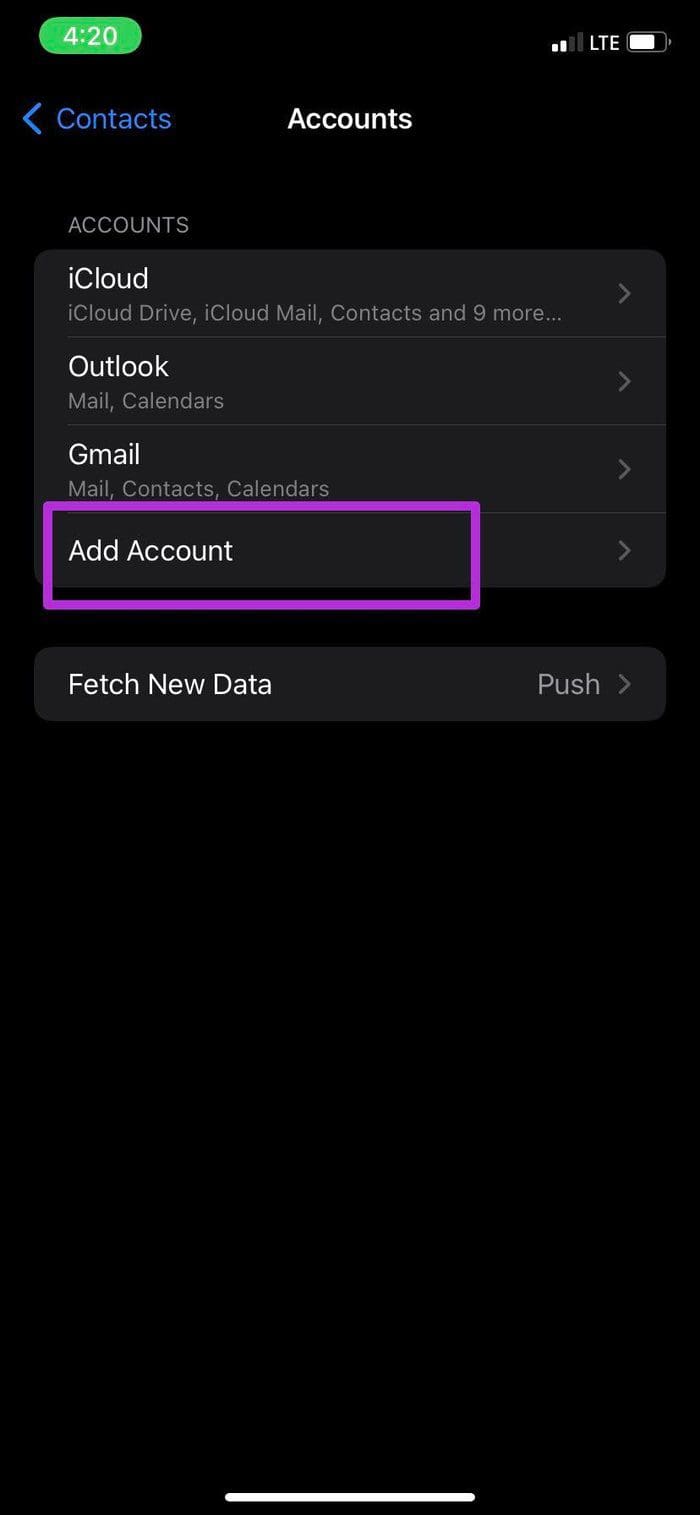
Step 1: Open the Settings app on your iPhone.
Step 2: Scroll to Contacts and open Accounts from the following menu.
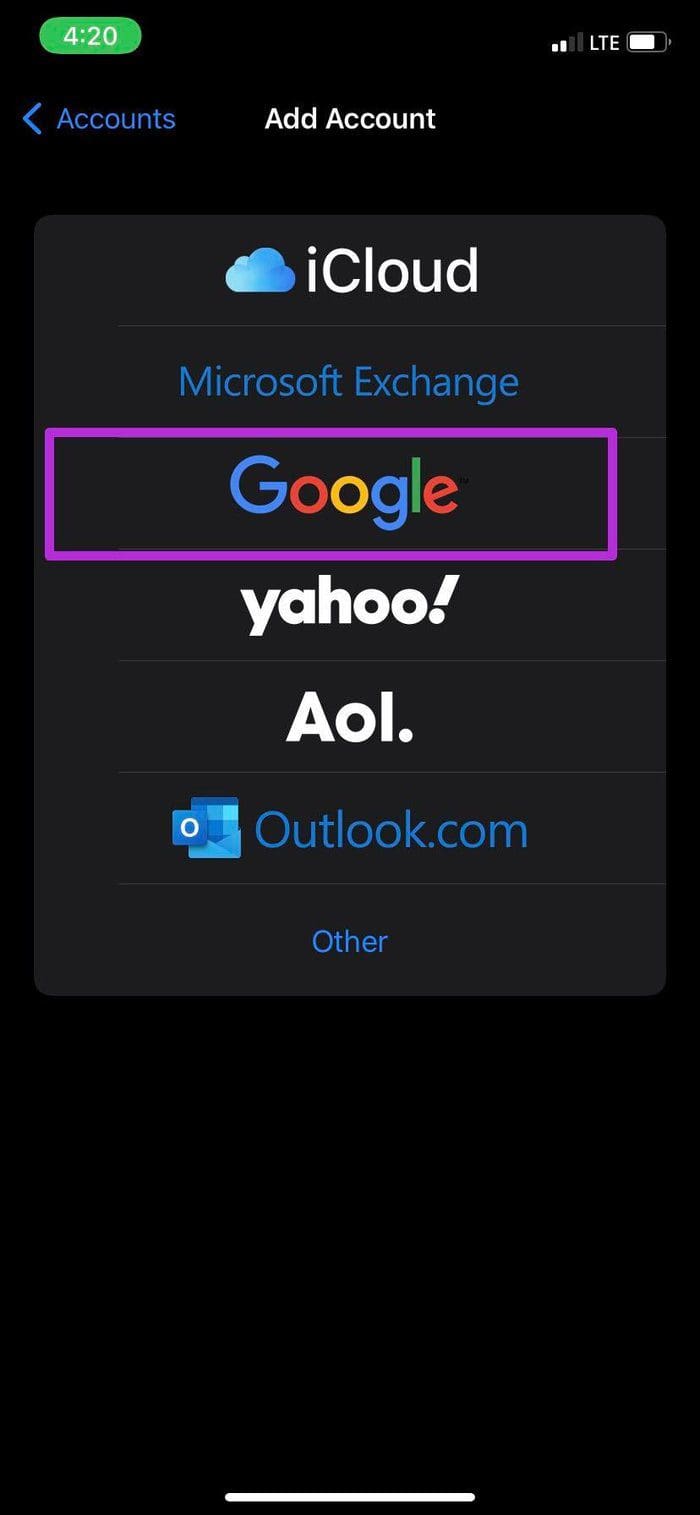
Step 3: Tap on Add Account and sign in using your Google account details and now, you will see a Gmail account appearing in the same Accounts menu.
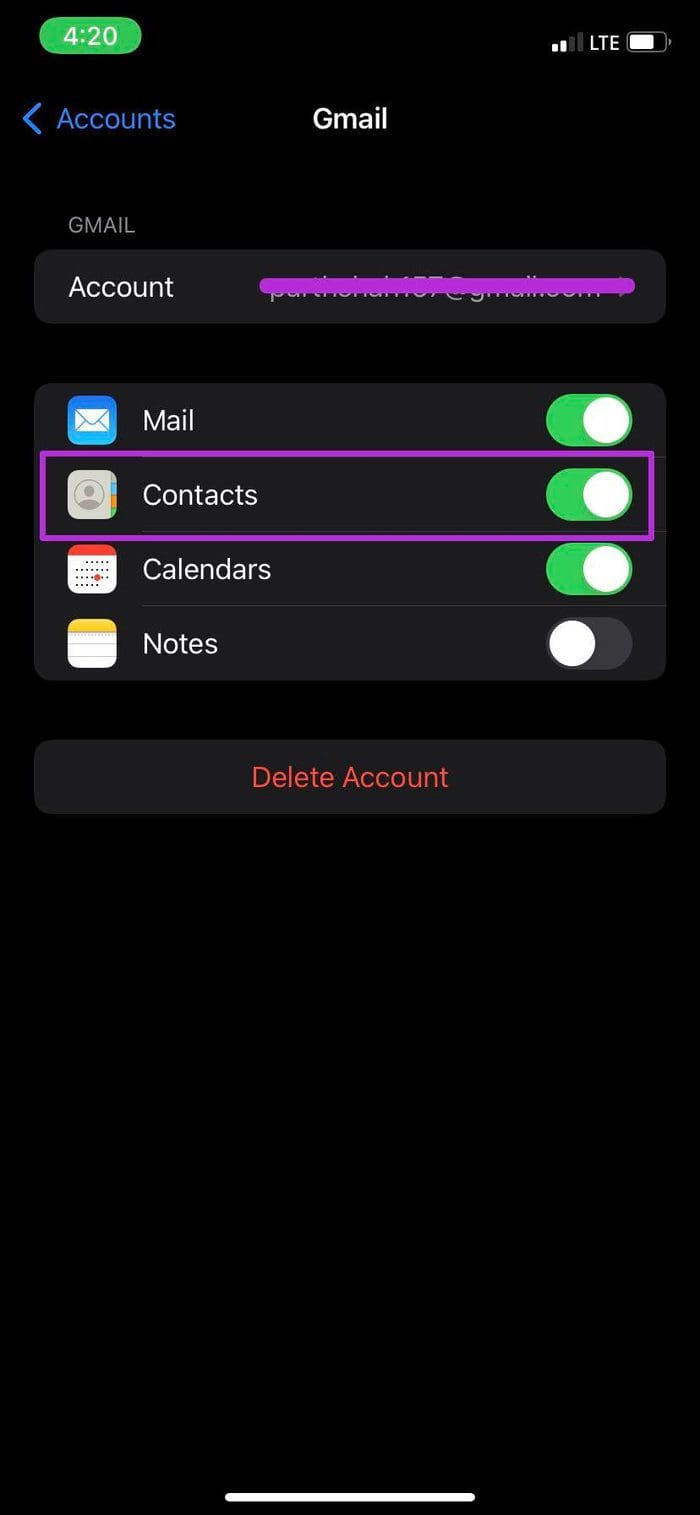
Step 4: From the Gmail menu, enable Contacts.

Step 5: Open the default Contacts app on your iPhone.
Step 6: Find your Gmail contacts and open contact with the email ID you want to delete.
Step 7: Tap on Edit at the upper right corner, scroll to the bottom, and tap on Delete Contact. Hit the confirmation button, and Gmail will no longer suggest the email address.

Method 3: Remove Gmail Remembered Contacts on an Android
Since Google Contacts is built-in on your Android phone and you already have an email address added, it only takes two or three steps to delete the saved Gmail address on Android. Here’s how:
Step 1: Open the Google Contacts app on Android. If the app isn’t built-in on your Android phone, download it from the Play Store.
Step 2: Tap on the contact. You will see all the social media accounts attached to it.
Step 3: Select the three-dot menu in the upper right corner and tap Delete.
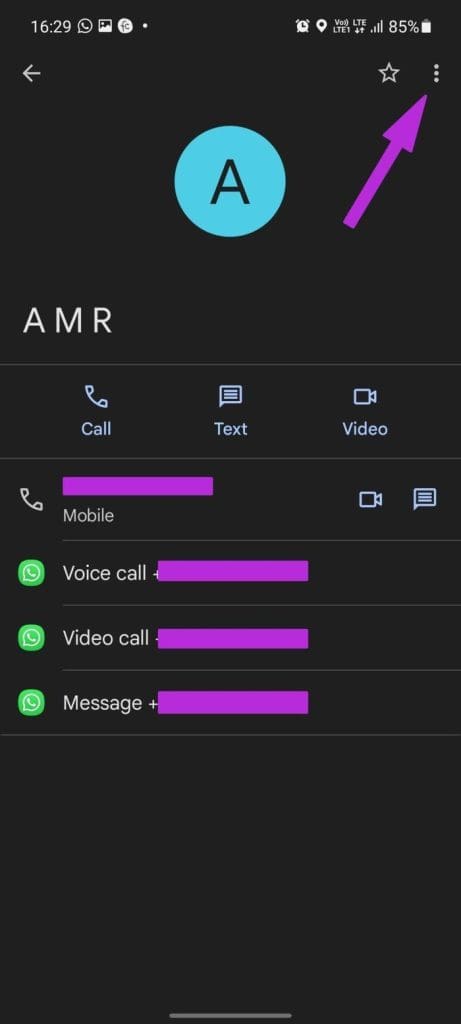
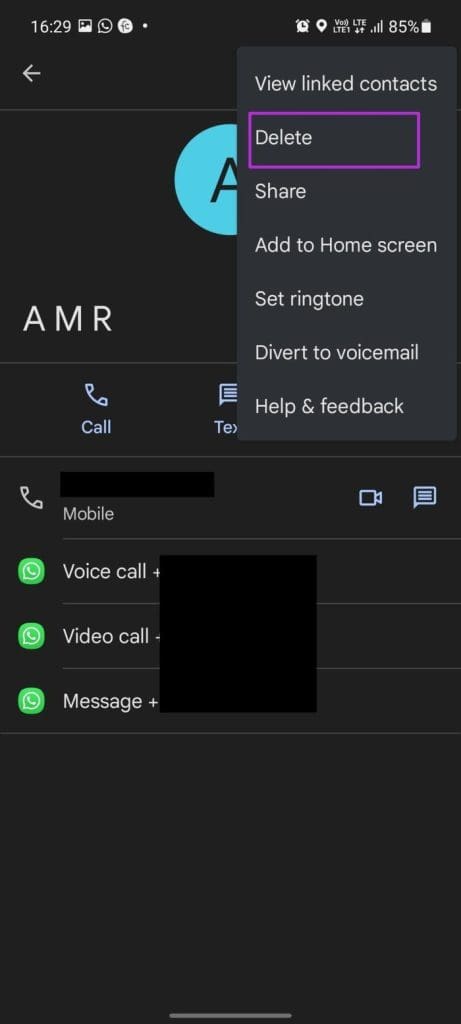
Repeat the same steps for all the remembered email addresses you want to remove in Gmail.